New: the production configurator for your own workflows
Contents
Some studios only mix and master, others only do arrangements and never touch a mix or a master. Until now, CuePort still created every production with the same six steps: Lyrics, Instrumental, Vocals, Mix & Master, Cover and Paid. If all you do is mixing, that left four steps in the list that nobody would ever tick off, and the delivery status kept waiting for a cover that isn't made in your studio at all.
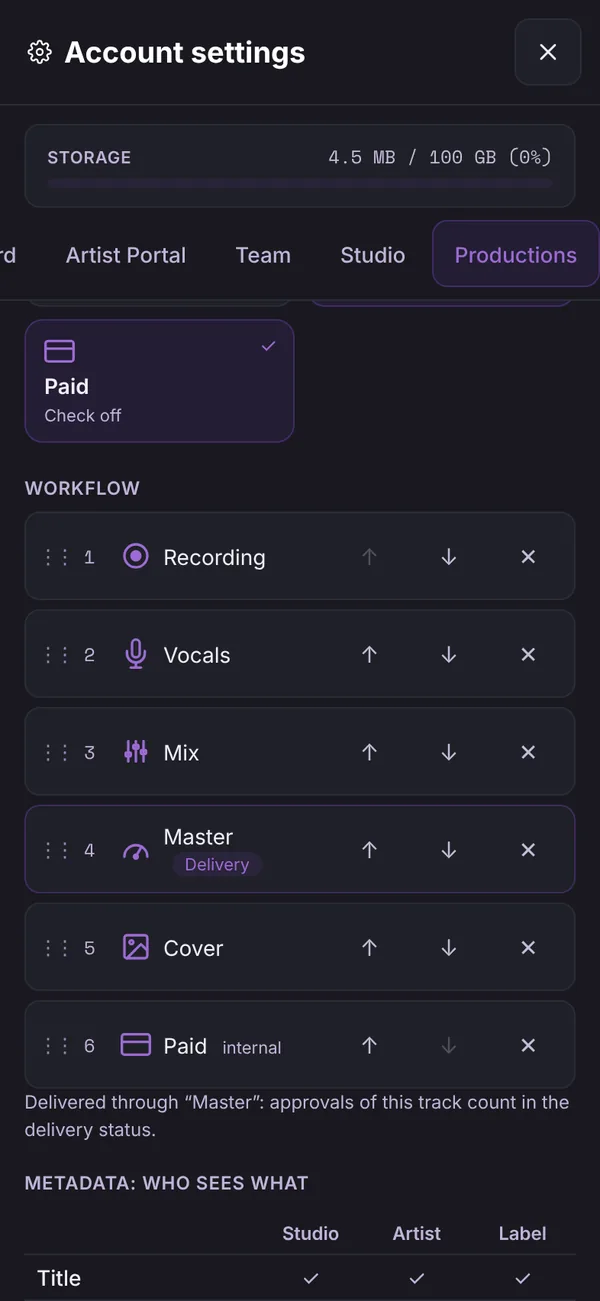
The new production configurator turns that into templates of your own. You'll find it in the account settings under Productions, from the Pro plan up.
Eleven building blocks, in your order
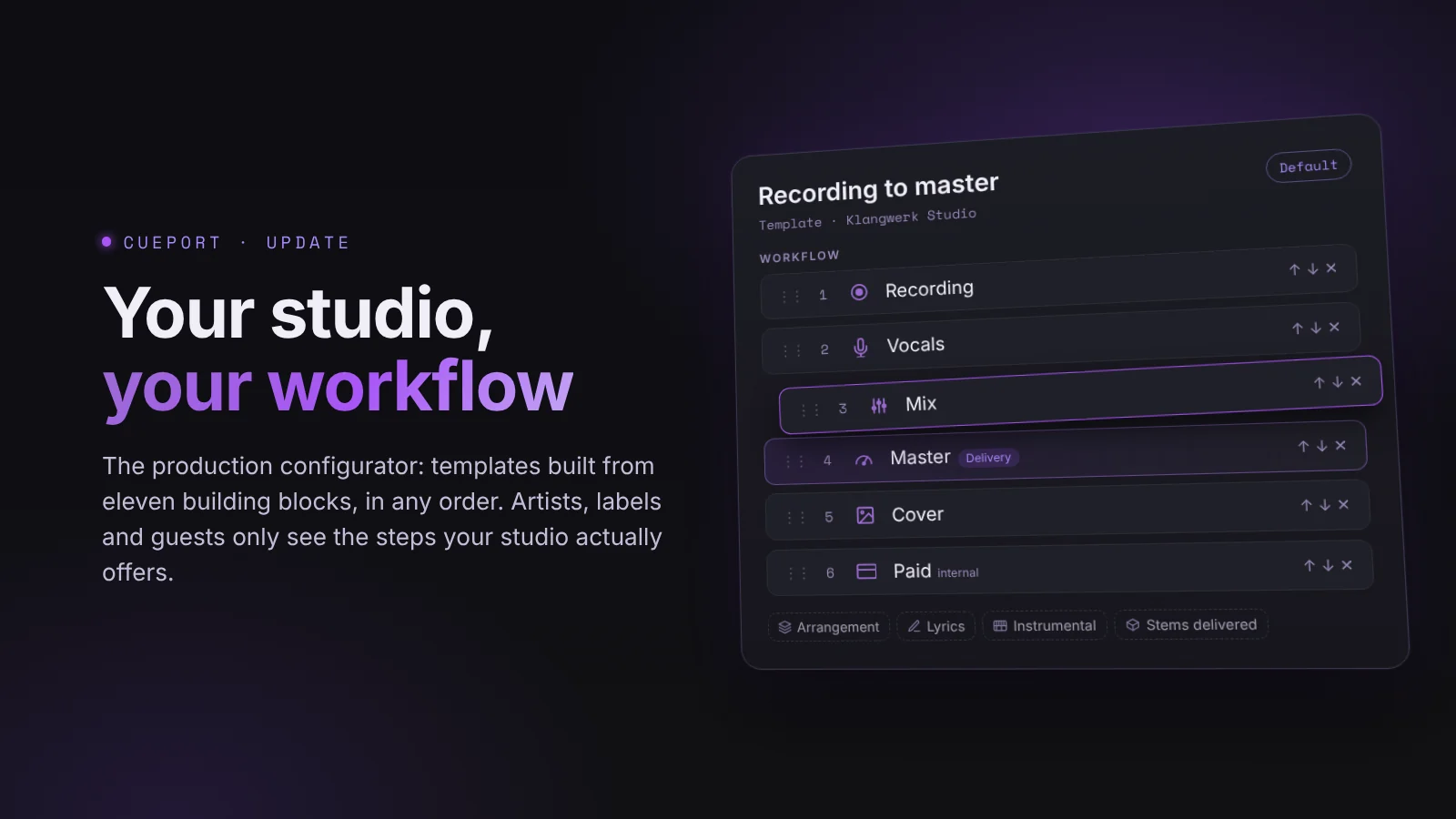
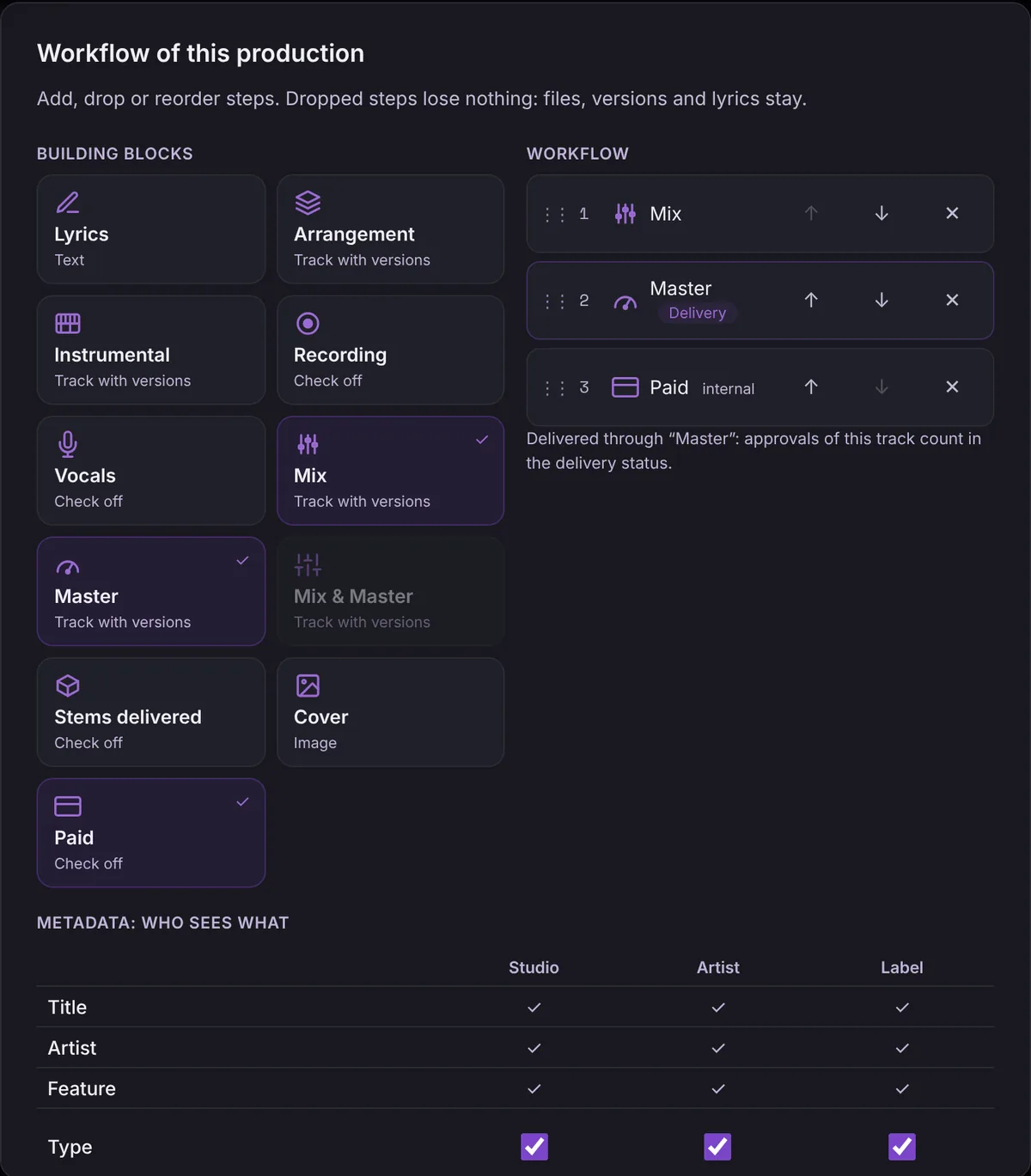
Five new blocks join the six you know. Arrangement, Mix and Master are now tracks of their own, with versions, player and comments, while Recording and "Stems delivered" are steps to tick off. Mix & Master is still there as a single block, just not together with a separate Mix or Master in the same template.
Tap the blocks on the left and the workflow builds up on the right. The order is up to you, by dragging or with the arrows, which also work on a phone. The last audio track in the workflow is the delivery, and the delivery status follows its approvals. Which track that is right now is shown directly below the workflow. Drag Master above Mix and Mix becomes the delivery, which is why it's spelled out so clearly.
Three studios, three templates
Here's how different workflows can look:
- A pure mix and master studio picks Mix, Master and Paid. That's all the production shows.
- A studio that only delivers arrangements gets by with Arrangement, Lyrics and Paid.
- A studio with a live room goes from Recording through Vocals, Mix and Master to the cover.
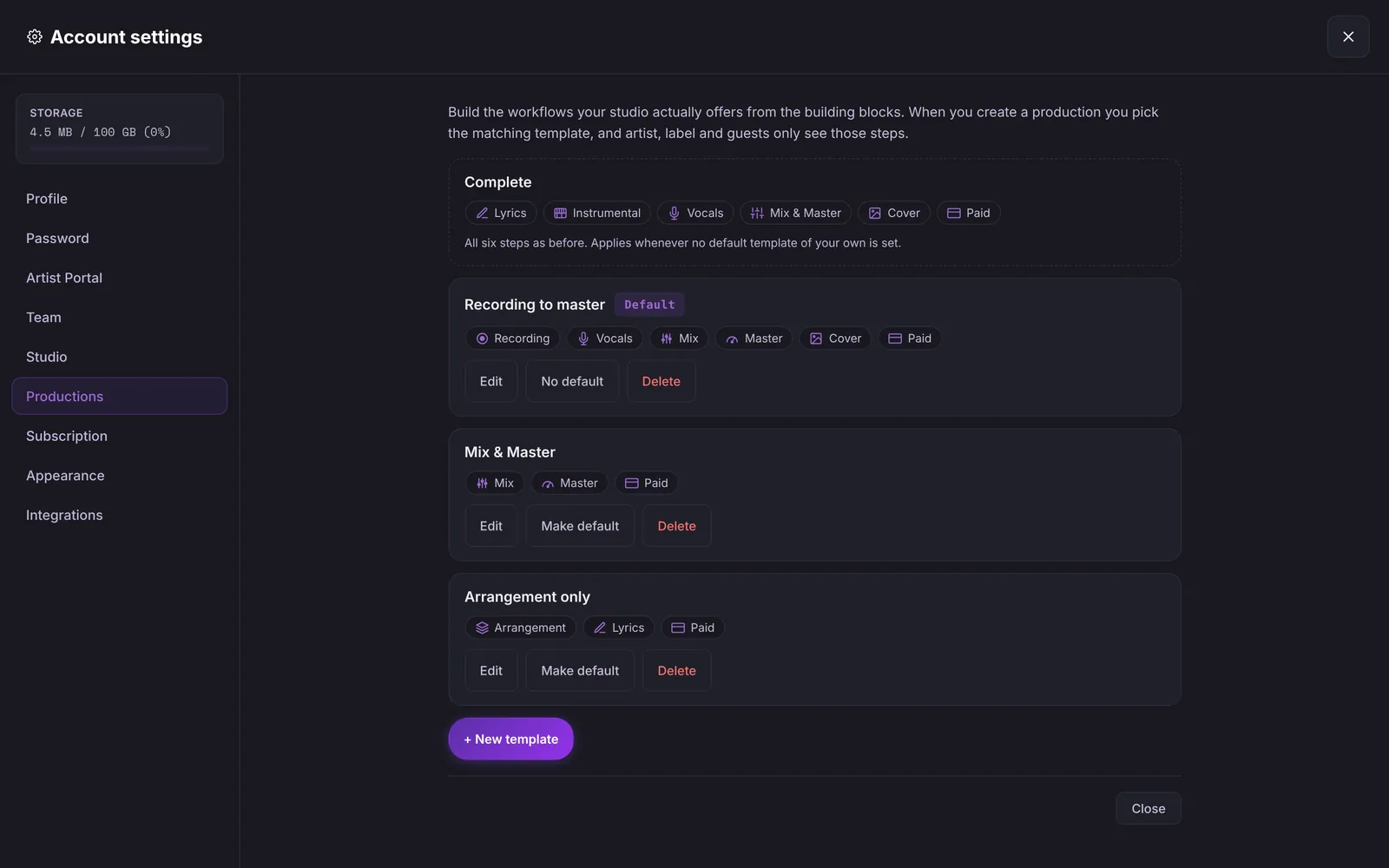
A studio can hold up to 20 templates, and every team member may create, change and delete them. You mark one as the default. The built-in template "Complete" with the six steps from before is always there.
When you create a production, the "New production" window now asks what it should start with. Your default template is preselected, and "Own template" opens the others. If the one you need doesn't exist yet, "Open configurator" takes you straight to the builder, and afterwards you land back in the window with the title and everything else you typed.
When an artist requests a production themselves, the request gets your default template. You can still pick a different one when you confirm it.
Every portal shows only your workflow
Each production gets a copy of the workflow when it's created. If someone on the team changes the template later, running productions stay as they are. In the studio you only see the steps of that production, progress counts accordingly ("1 / 3 steps"), and every audio track of the workflow has its own upload and versions.
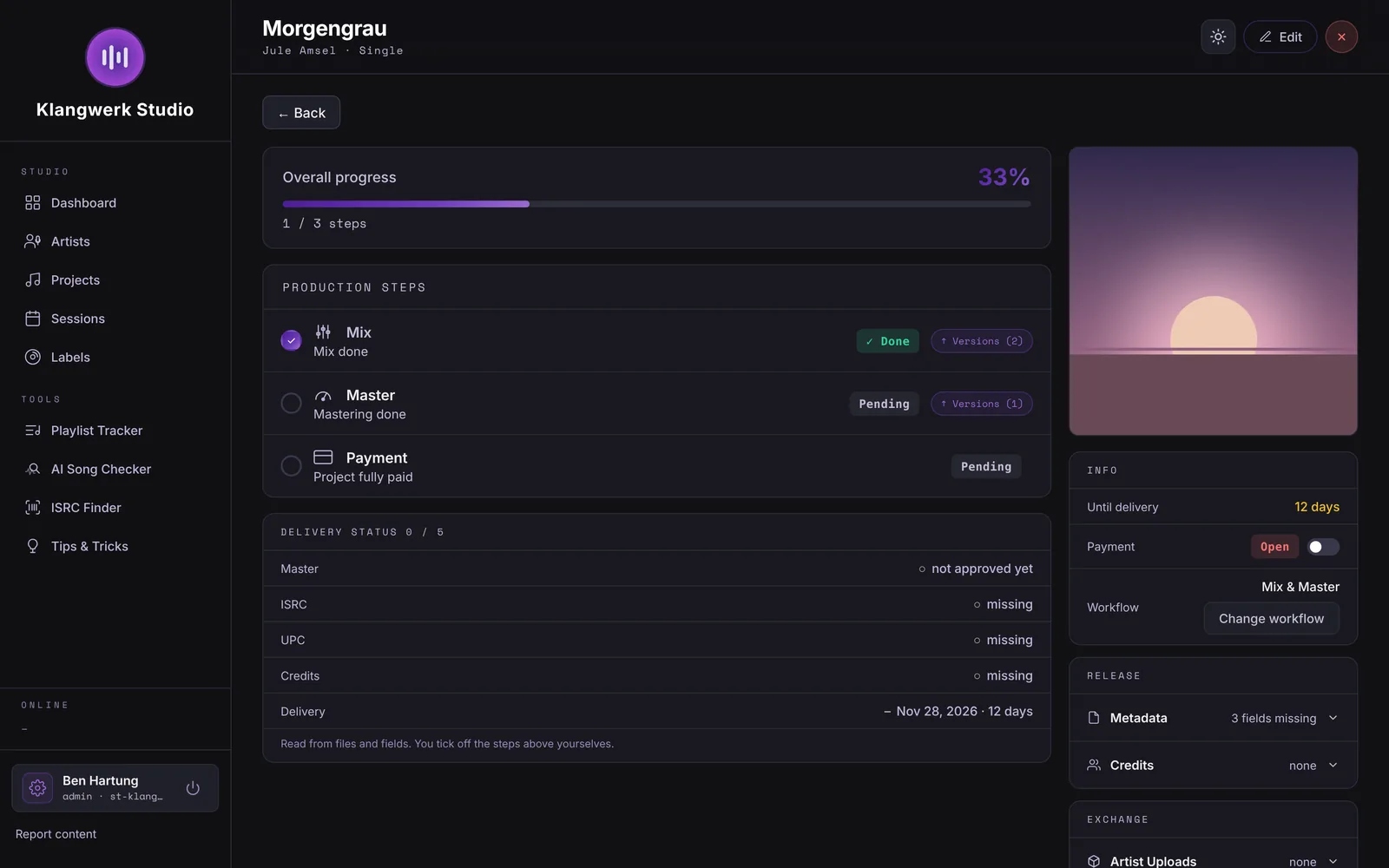
The artist portal shows the same steps in the same order, and tracks with versions appear under their own name. Empty placeholders for tracks the production doesn't have are gone. The artist still sees Paid as before, as long as the step is part of the workflow.
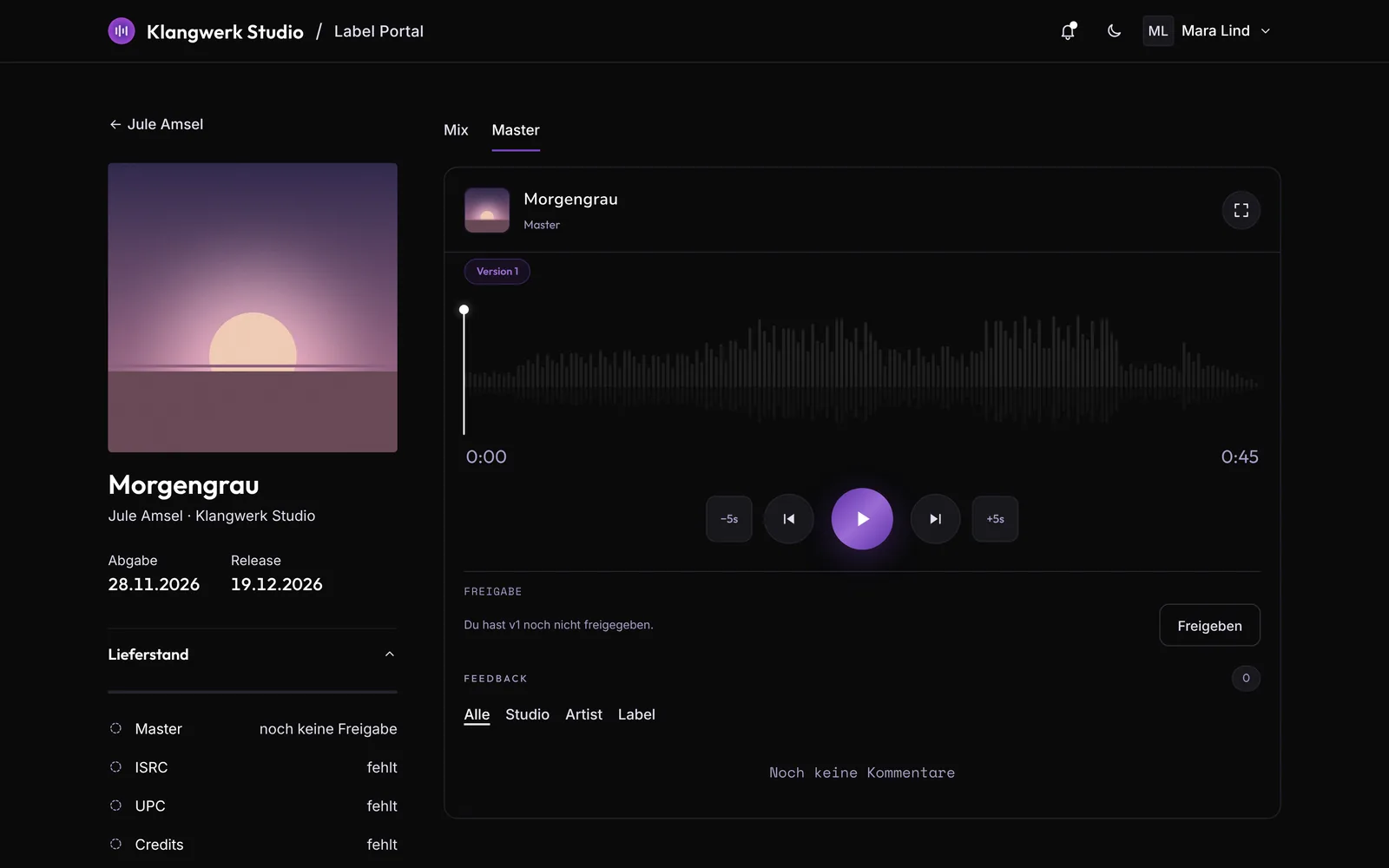
In the label portal, the tabs above the player are named after the tracks of the workflow, and delivery status and approval refer to the delivery track. A label never sees the Paid step. The guest page also shows only the audio tracks of the production, with their names. And from version 1.39, CuePort Sync for REAPER shows the tracks in the order of your workflow.
And if a running production suddenly needs a recording after all? Open "Change workflow" in the production and add the block there. Removing one works the same way, and nothing gets lost. Files, versions and lyrics stay stored. Versions of a track that's no longer in the workflow remain reachable in the studio, so nothing anyone has listened to or commented on disappears.
Show or hide metadata per portal
Below the workflow, each template sets who sees which metadata: type, planned release, delivery deadline, ISRC, UPC/EAN, catalog number, label and credits, each separately for studio, artist and label. Title, artist and feature are always shown everywhere and can't be switched off. The preview underneath shows what each side ends up seeing.
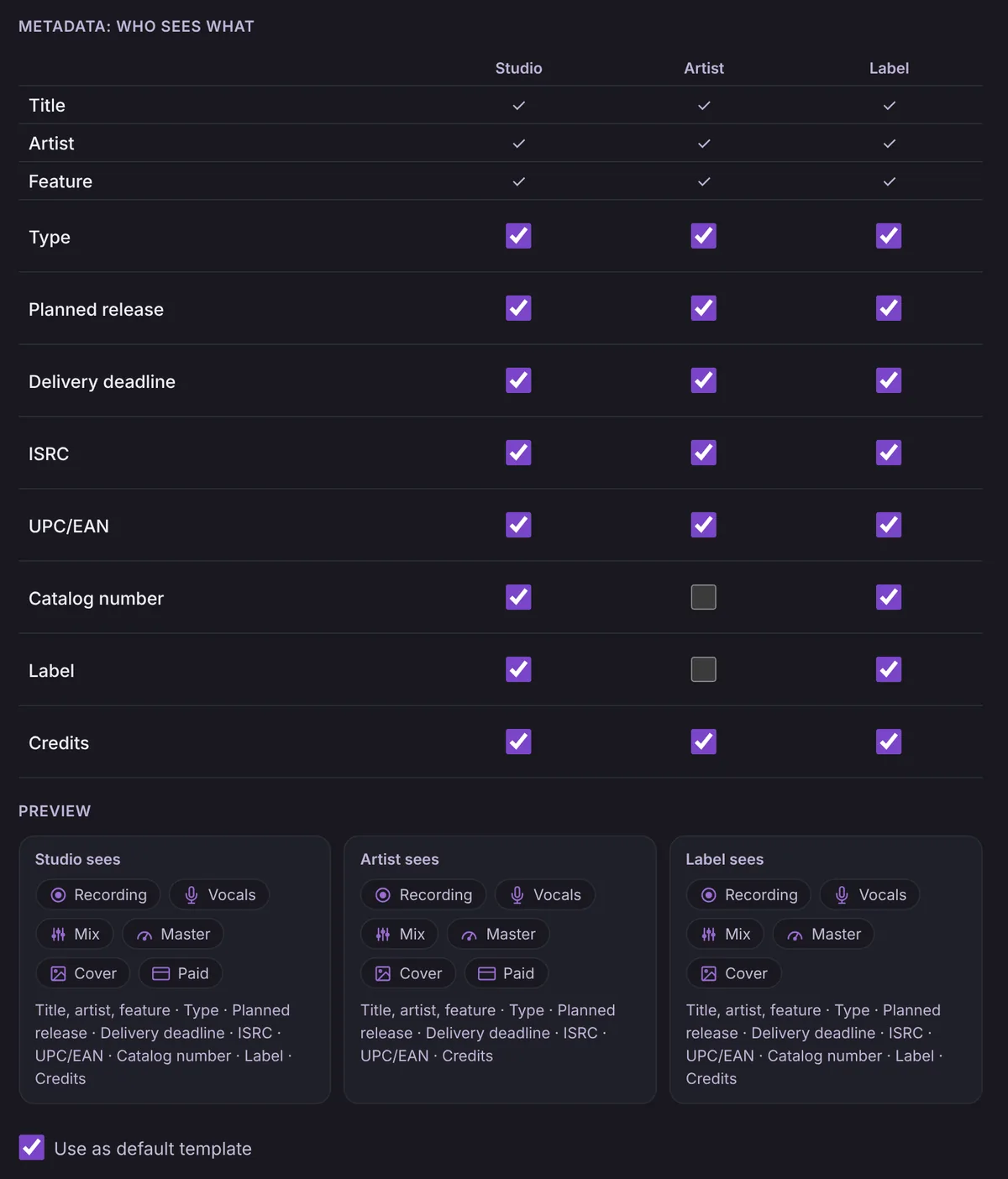
A hidden field isn't just invisible in the artist portal or the label portal, it can't be edited there either. The value stays stored and comes back as soon as you show the field again. The same goes for the studio. Whatever the template hides for the studio is left out of the production's "Release" card, and the value is still stored. "Change workflow" brings a field back for that one production at any time. The delivery status, too, only asks for details the viewer is allowed to see.
That leaves your existing productions. They stay exactly as they are. Everything created before the configurator keeps running as "Complete" with the six familiar steps, and as long as you don't set a default template of your own, every new production starts that way too. On the Free plan it stays "Complete"; custom templates come with Pro.
Frequently asked questions
Which plan includes custom templates? Custom templates and changing a workflow are part of the Pro and Studio plans. On the Free plan, CuePort creates every production with the Complete template, meaning the six steps from before.
What happens to my existing productions? Nothing. They keep running as Complete, with Lyrics, Instrumental, Vocals, Mix and Master, Cover and Paid, just as before.
Do I lose files if I take a step out of the workflow? No. Files, versions, lyrics and comments stay stored. The step simply stops counting towards progress, and versions of a removed track stay reachable in the studio.
Does changing a template change my running productions? No. Every production gets a copy of the workflow when it's created. You change running productions one at a time with Change workflow.
Can I keep mix and master as separate tracks? Yes, Mix and Master are separate building blocks with their own versions. Delivery runs through the last audio track in the workflow, so with Mix followed by Master it's the master.
Can I hide the title or artist from the label? No. Title, artist and feature are always visible in every portal. You can hide type, release, delivery deadline, ISRC, UPC/EAN, catalog number, label and credits.