New: labels now work right inside CuePort, in their own label portal
Contents
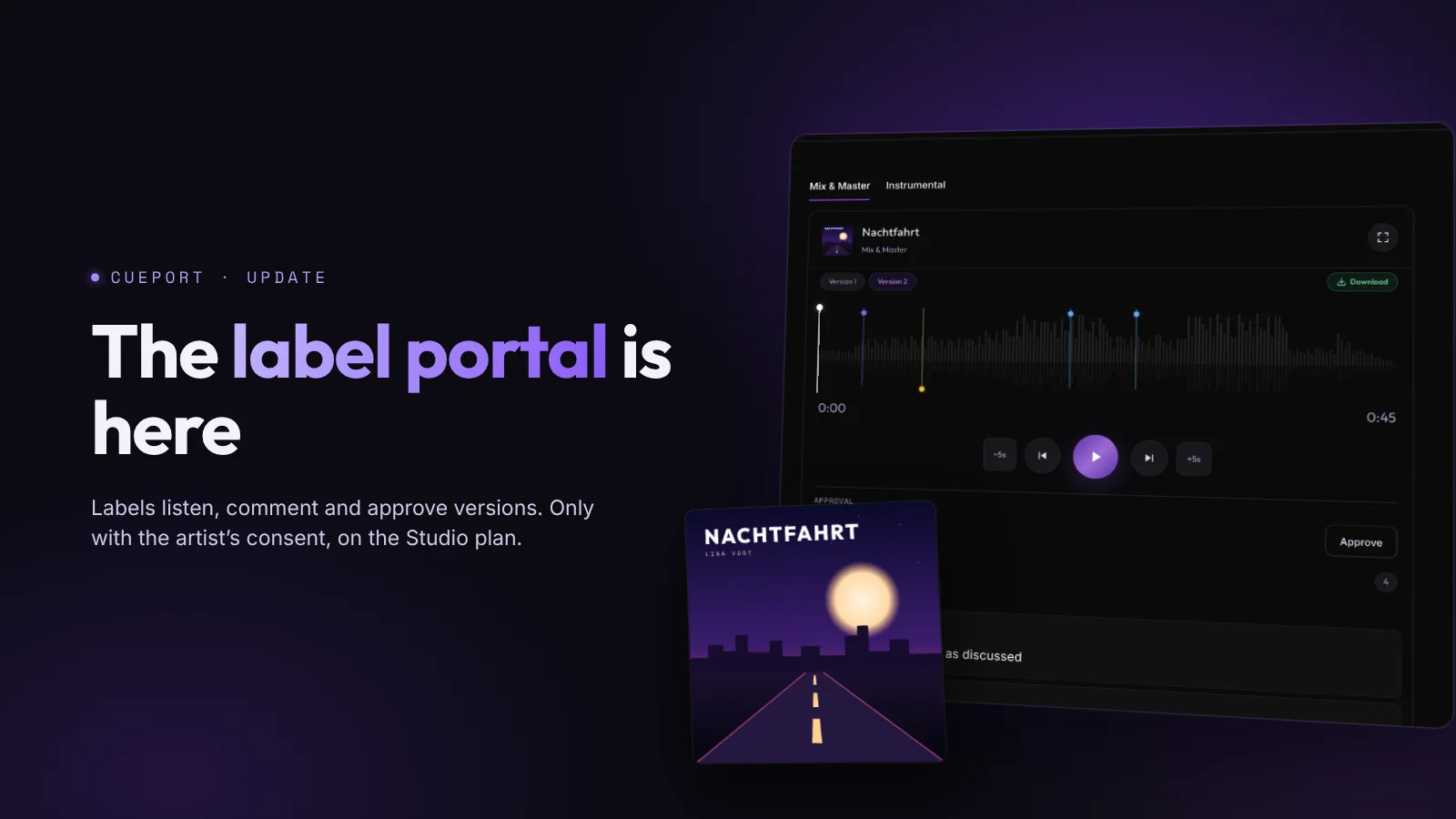
A short update with a lot in it: on the Studio plan you can now bring your artists' labels right into CuePort. A label gets its own portal at cueport.app/label, where it listens to the versions, comments on the waveform, approves and fills in metadata and credits. Only for the productions the artist has agreed to, though.
When a label was part of a release, a lot used to happen outside CuePort. The bounce went out by email, the approval came back as a reply, ISRC and catalogue number sat in some spreadsheet, and in the end nobody was quite sure who had last changed the release date. Now all of that lives on the production you're working on anyway.
How to bring a label in
There's a new "Labels" page in the studio for this. Every label is a tile with its logo, the number of people, artists and productions, and a note when a request is still waiting on the artist. One click opens the detail view. That's where you invite the label's people by email, see who was active last, and can require two-factor sign-in for a label. Admins create, invite and delete; any role on the team can request and revoke access.
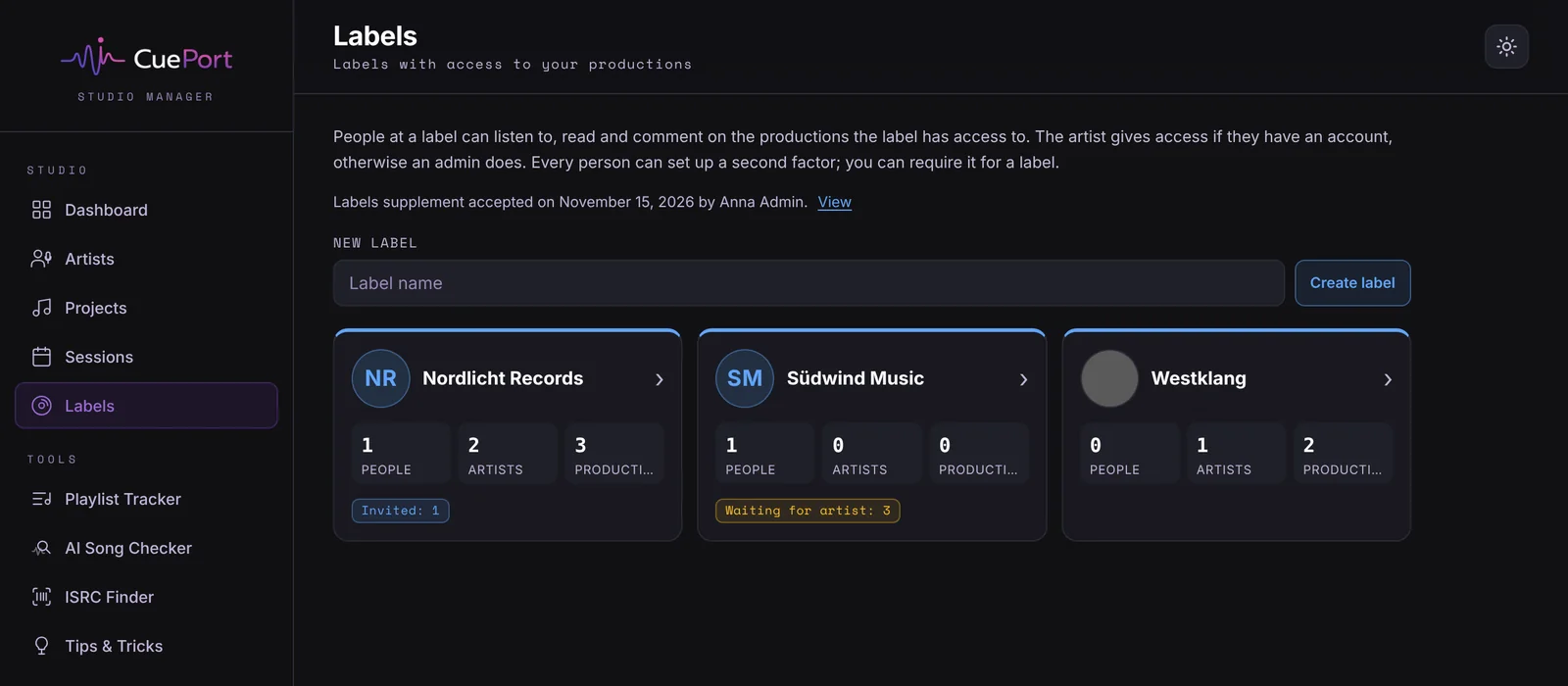
Before labels see anything in your studio, an admin agrees once to the "Labels supplement" to the terms and the data processing agreement. The text is right there on the page, one tick and you're done.
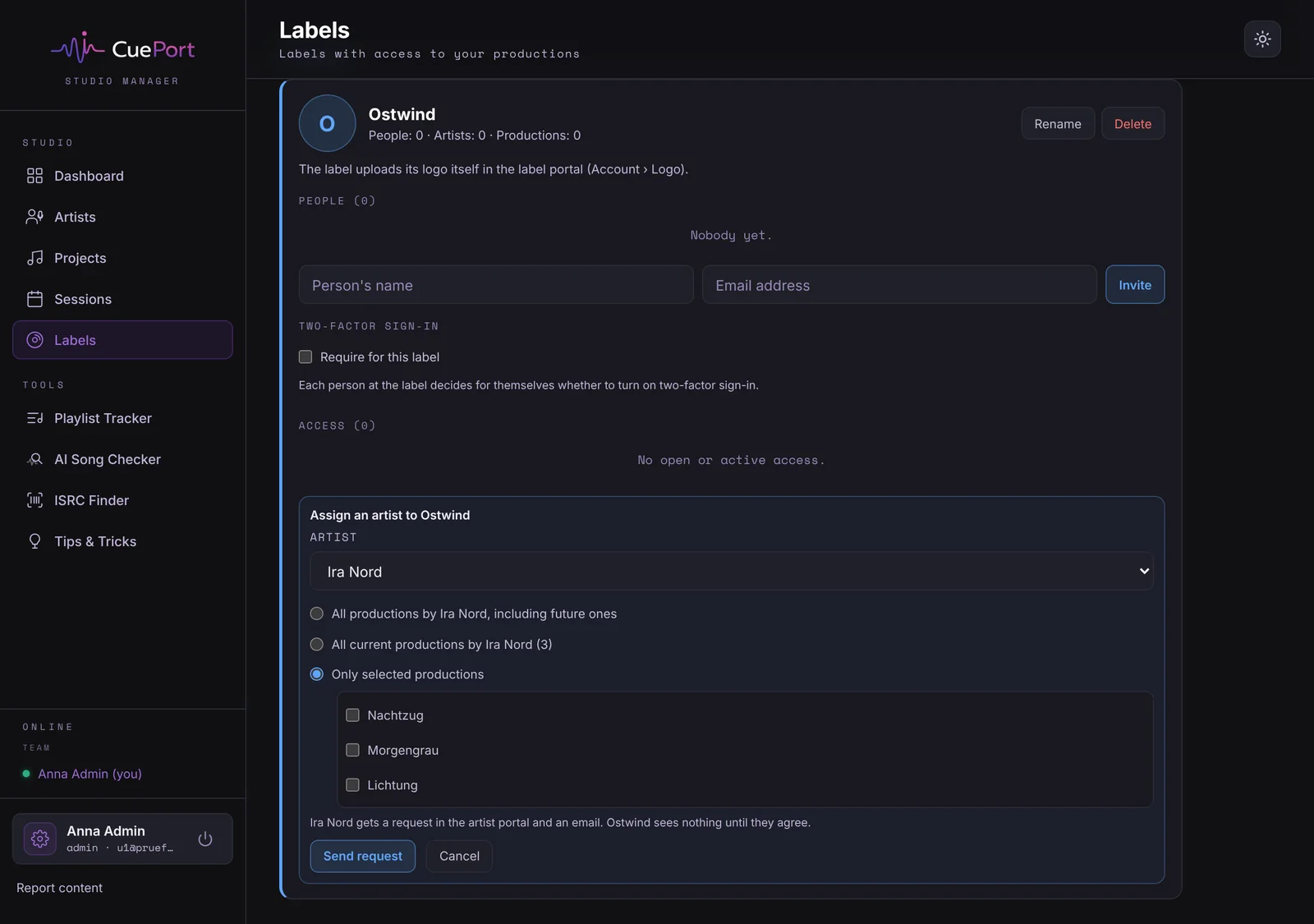
You give access per artist with "Assign an artist". Pick the artist, then the scope: all productions including future ones, all current ones, or only the ones you tick. It goes out to the artist as a single request, so you don't have to open every production. If you'd rather work from the production, the "Labels" section under "Exchange" on the right offers the same three options.
The artist decides
If the artist has an account, the request shows up in the artist portal and by email. The card spells out in four points what the label can see and do with access and what it can't. Then they tap "Agree" or "Decline". For a request covering several productions, one answer applies to all of them.
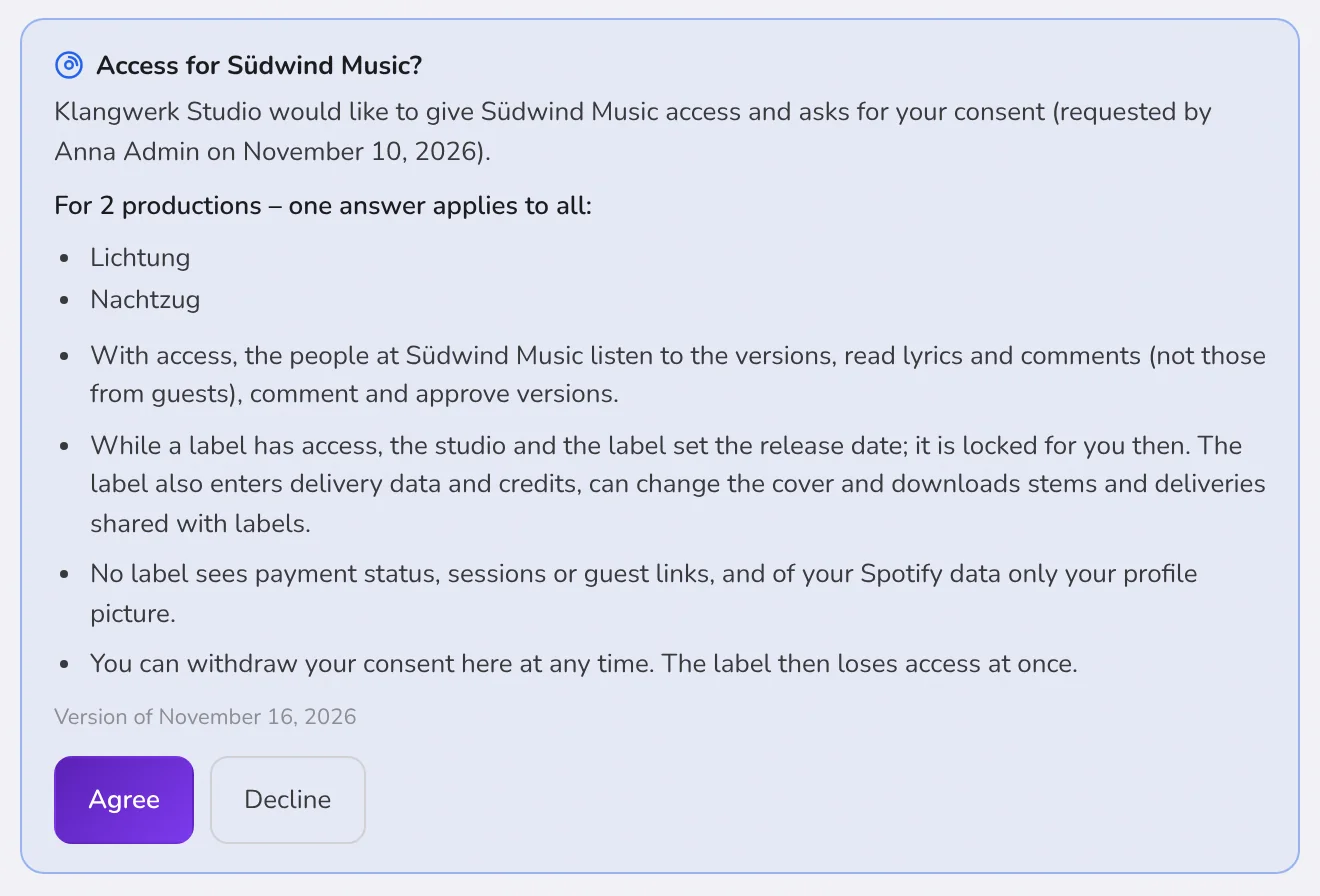
The artist can withdraw their consent at any time from the production's card. The label then loses the production immediately, and an open player stops. If the artist has no account, only an admin of the studio can give access, and the studio shows who did.
The same now applies to guest links. If the artist has an account, a new guest link needs their consent, and so does any change that widens a link (more versions, downloads on, password removed, a later expiry). Guest links that already exist keep working; the artist sees them in their portal and can end any of them. If the artist has no account, you create guest links just as before.
The label portal
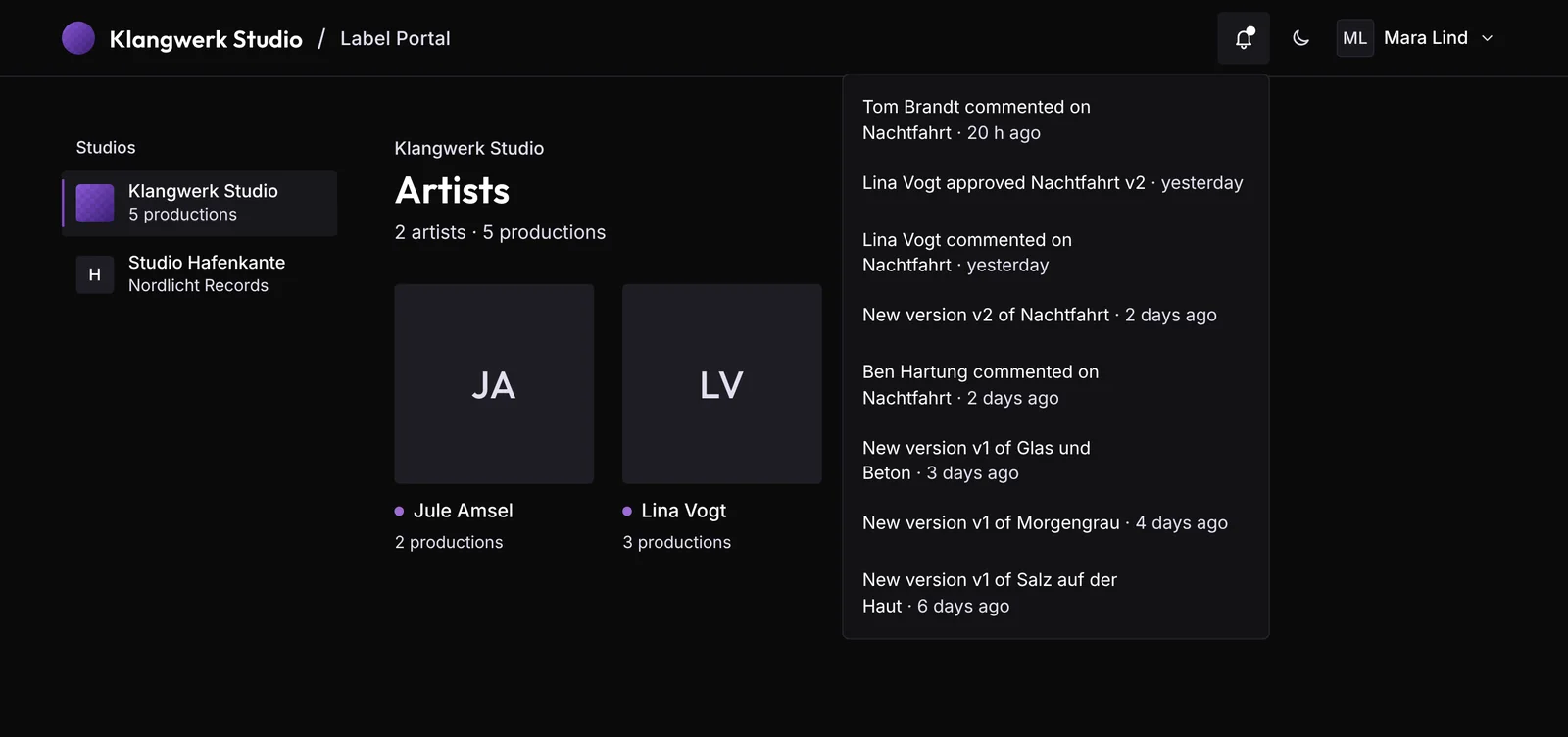
Whoever gets invited sets a password and lands on an overview of the artists the label has access to. With the Spotify picture if you've linked the artist, initials otherwise. The bell at the top collects what happened under "New for you": new versions, comments, approvals. If someone at the label works with several studios, one account is enough, and they switch studios on the left. If you've set a logo and a brand colour, the portal wears yours.
The production itself looks the way it does for you in the studio: on the right the big player with versions, Mix & Master and Instrumental as tabs, and every comment on the waveform, filterable by studio, artist and label. On the left, in sections that fold open, are delivery status, approvals, metadata, credits, files and lyrics.
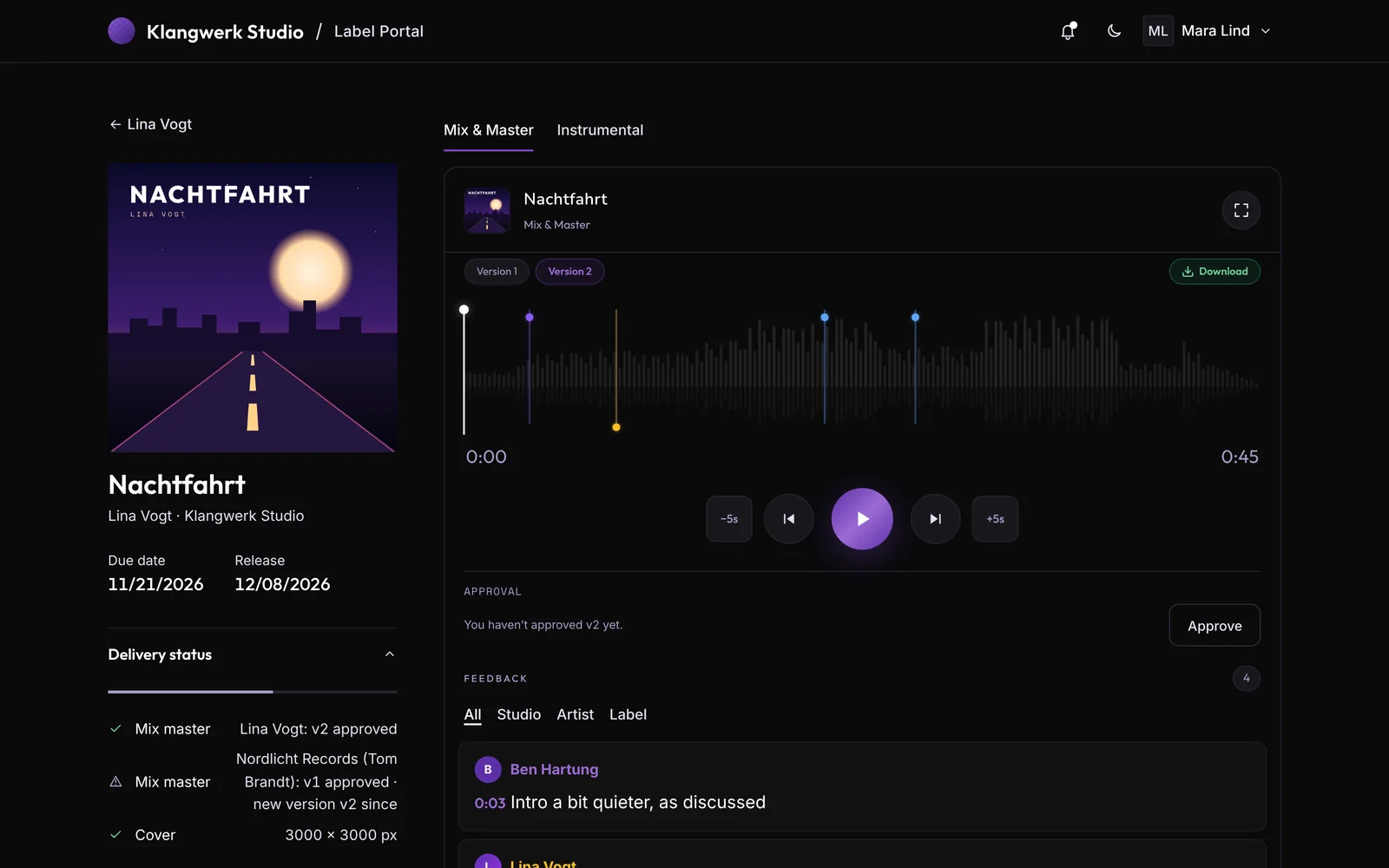
What the label can do there:
- approve a version, and take the approval back
- comment, reply and edit its own comments
- fill in release, due date, ISRC, UPC/EAN, catalogue number and label name
- add credits, with suggestions for the role
- upload a new cover (the previous one is kept as an earlier version)
- download stems and the deliveries you explicitly share with labels
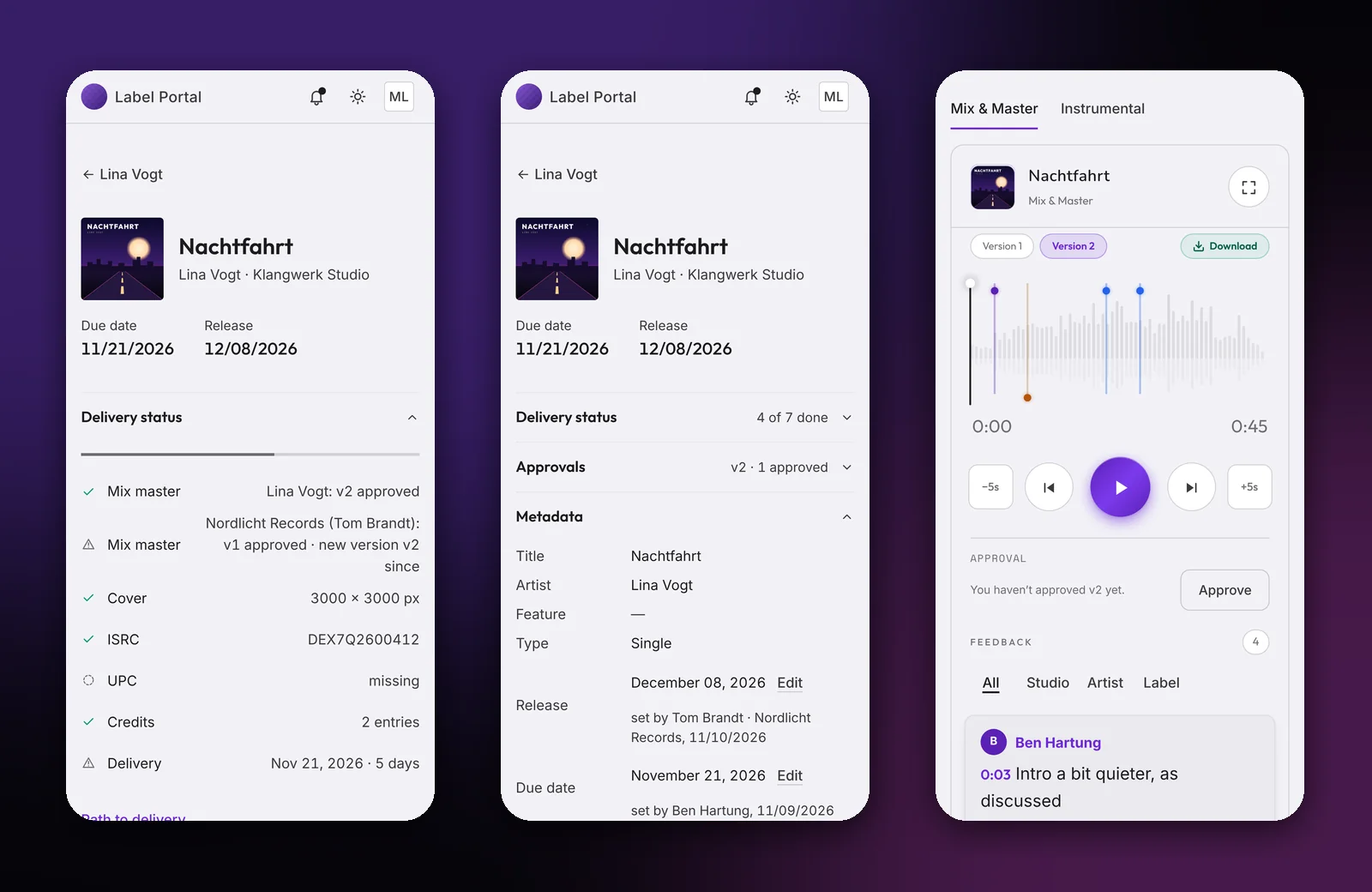
Delivery status is the same list as in the studio. Mix master approval, cover, ISRC, UPC, credits and due date, each with a tick or whatever is missing. Under "Path to delivery" the label sees the production's five steps and, at the top, the next step. If its own approval is open, there's a button; otherwise a line saying who's up.
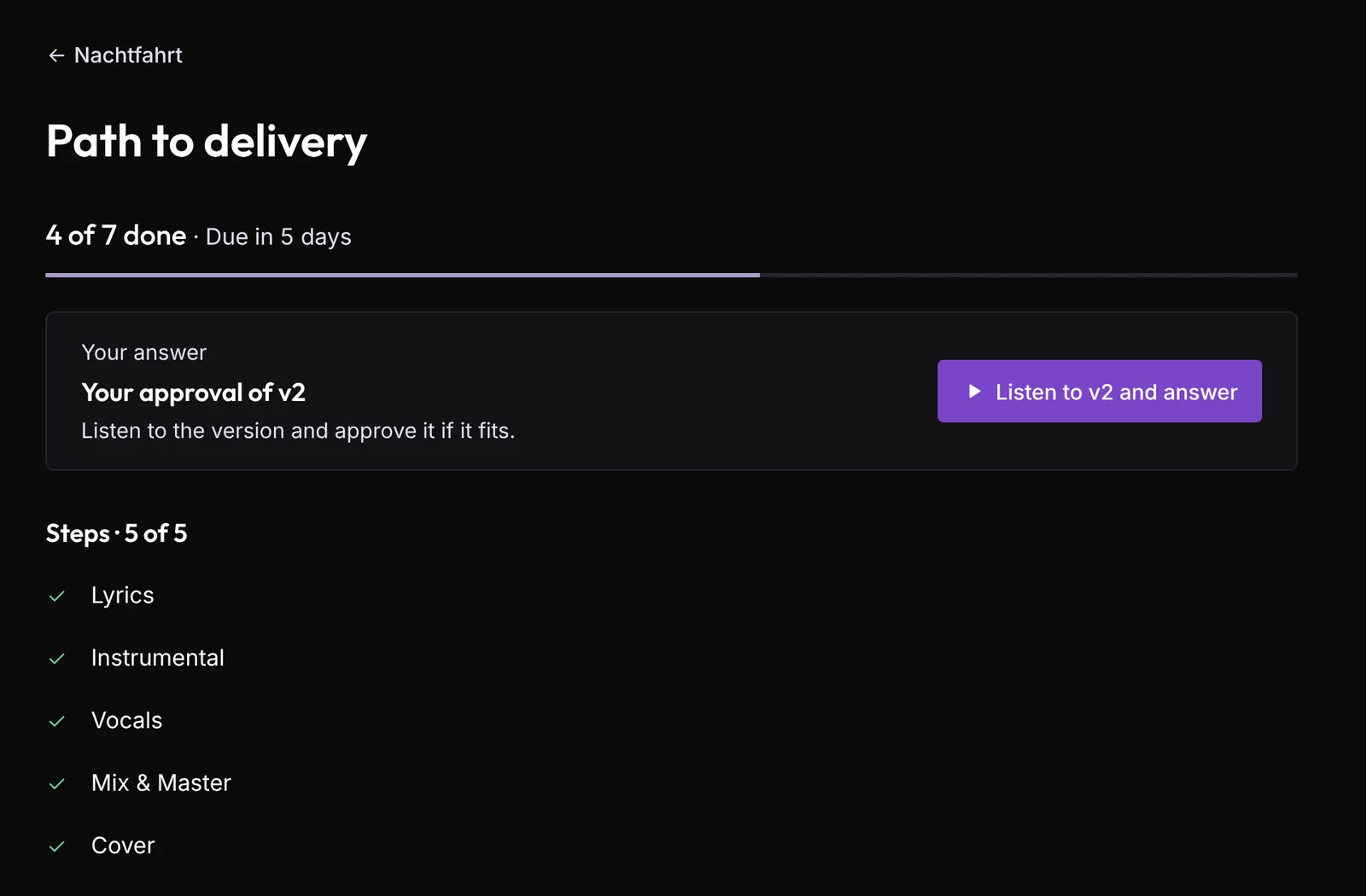
New comments and versions come in live, no reload. When you upload a new version, the label gets the same email as the artist. And on a phone the portal works the same way, just stacked.
What reaches you in the studio
A label comment shows up in the player as "Name · Label" in blue, next to studio and artist. When the label changes a field, the line below says who set it and when. While a label has access, the studio and the label set the release date, and the artist no longer does. In "All projects" you can filter for productions with a label or for those still waiting on the artist, and the cards carry the label's name.
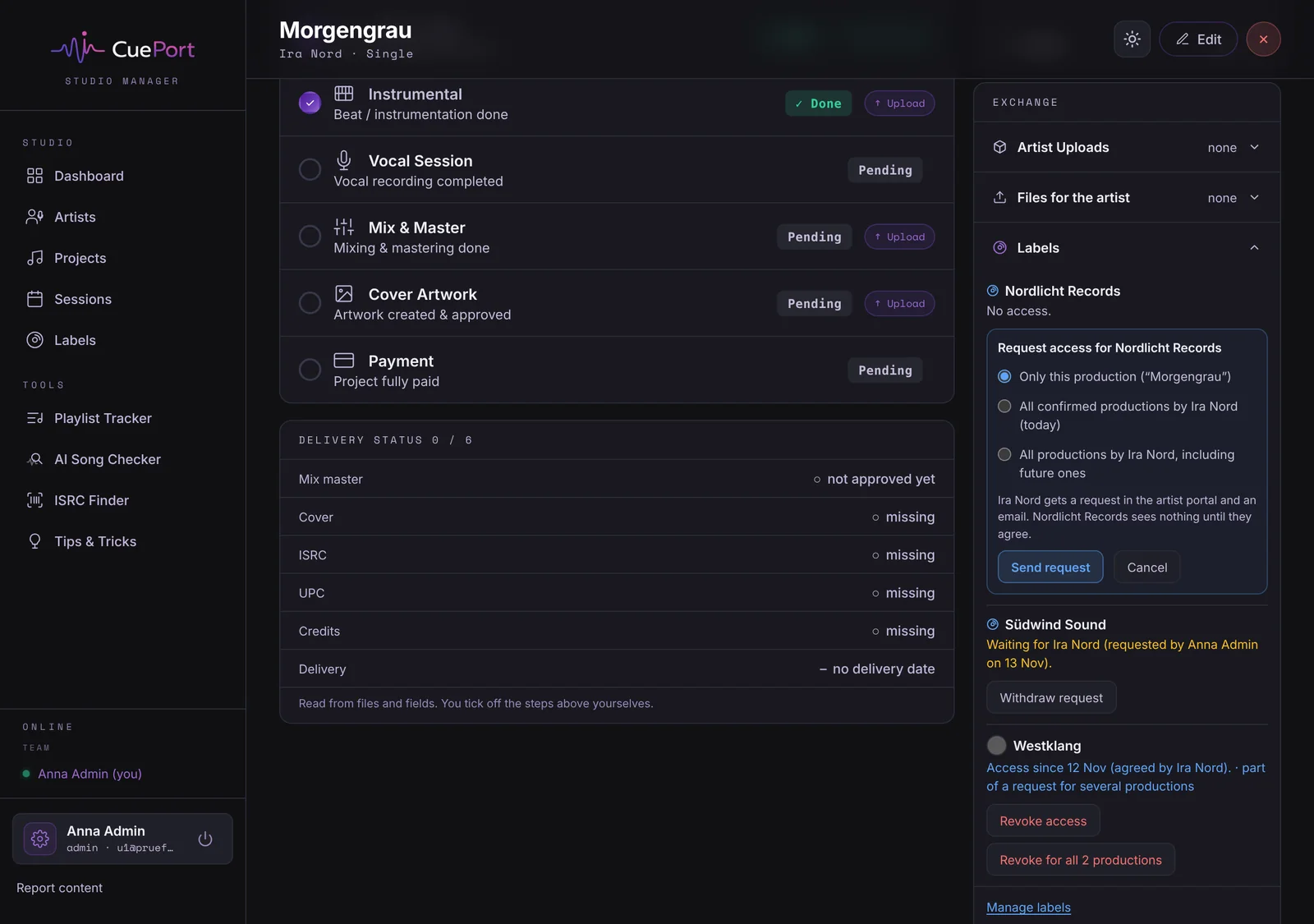
You revoke access in the same section, one production at a time or for every production in a request. Who's in the label portal right now shows under "Online" in its own group.
What a label doesn't see
Payment status, sessions and guest links stay with you. A label doesn't see guest comments, and it doesn't see your notes on the production either. Of the artist's Spotify data it only sees the profile picture. And a production an artist has only requested shows up for the label once you've confirmed it.
Anyone in the label portal can turn on two-factor sign-in for themselves. If you want it mandatory for a label, an admin ticks the box in that label's detail view.
The label portal comes with the Studio plan. If you work with labels and want to know whether it fits the way you work, just drop us a line.
Frequently asked questions
Do I need the Studio plan for this? Yes, labels are only part of the Studio plan. Without it the Labels page doesn't appear in the navigation, and labels see nothing in your studio.
What happens if the artist declines? Then the label gets no access to that production. A new request for the same production can only go out 30 days after the decline.
Can the artist withdraw consent later? Yes, at any time from the production's card in the artist portal, for one production or a whole request at once. The label loses the production immediately.
What if the artist doesn't have an account? Then an admin of the studio gives access. The studio shows who gave it, and if the artist gets an account later, they see the access and can withdraw it.
Can a label see my notes or payment status? No. Notes, payment status, sessions, guest links and guest comments stay in the studio. From Spotify a label only sees the artist's profile picture.
Can someone at a label work with several studios? Yes, with one account. In the label portal they switch between the studios that invited them and only see each studio's shared productions.